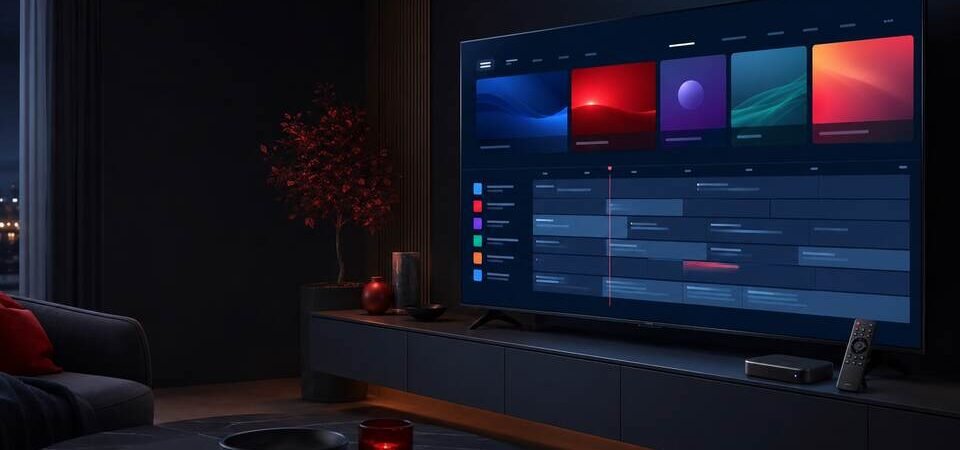
TiviMate Premium is designed for television screens and remote controls, making it a popular media-player option for Android TV and Google TV devices. A good setup starts with two things: a compatible device and a verified application source.
Before you install TiviMate Premium
Confirm that your television or streaming device runs Android TV, Google TV or another supported Android-based television platform. Update the operating system, connect to a stable network and make sure there is enough free storage.
Use the official download source
Visit the official TiviMate website or its verified Google Play listing. Check the developer information carefully. Avoid modified, cracked or “unlocked” APK files because they can expose account details, display unwanted advertising or contain unsafe code.
Install and open the player
Install the authentic application, open it and follow the on-screen introduction. The app itself is a media player; it does not automatically include channels or an entertainment subscription.
Add authorized service details
If you have a lawful subscription, your provider will explain which supported login method to use. Enter details carefully and keep credentials private. Do not post them in public forums or send them to unrelated people.
Organize the interface
After the service loads, review channel groups, favourites, the programme guide and display settings. Start with the default playback settings before changing buffers or decoders. This makes troubleshooting easier if something does not work as expected.
Complete a quick quality check
Test several included streams, programme-guide updates and audio tracks. If playback is unstable, restart the router and device, use Ethernet where possible and contact your provider with the device model and error message.
Final reminder
TiviMate and this website are independent. Purchase any official app licence only through an authorized source, and use the player only with content you are legally allowed to access.
Useful resources
- TiviMate official website — the developer’s own documentation and release notes.
- Android TV Help Centre — Google’s official guidance for setting up and troubleshooting Android TV.
Settings to check straight after install
- Time zone: if this is wrong the programme guide shifts by hours and looks broken.
- Buffer: raise it one step if playback stutters occasionally.
- Auto quality: leave it on when your connection is borderline.
- Auto-update: switch on so the app stays compatible with your TV firmware.
Common questions
The app opens but no channels load. Almost always the login details. A stray space at the start or end when pasting is the usual culprit — try typing them manually once.
The guide is empty. Check the time zone and give it a few minutes to finish downloading on first run.
It only stutters in the evening. That is your line under load, not the app. Measure between 8pm and 11pm to confirm.
Full troubleshooting is in the buffering and EPG guide. Device requirements are in best devices, and costs in price and activation.
Setup only pays off with a service worth watching behind it. Our TiviMate Premium subscription is built around uptime and quick support rather than channel counts. If something stalls mid-stream, the buffering and EPG fixes cover the usual causes.
Once you are set up, see organising channels and favourites, recording live TV and parental controls.
Useful resources
- TiviMate official site
- Android TV Help
- Wi-Fi 6 overview — why a newer router steadies 4K playback.